



Onboarding & your first workstation
First-run setup with the Ringleader app: sign in, create the local runtime, wire up ssh, and boot your first workstation.
The first time you launch the Ringleader app it shows a short onboarding wizard
and starts a background rl daemon, the control loop that boots workstations,
delivers the in-VM agent, and forwards the Docker socket. It is the same app on macOS
and Windows, so this page covers both. It walks through onboarding and then brings
up your first workstation.
The onboarding wizard
The wizard opens itself on a machine that has never signed in and has no workstations, and offers four opt-in actions. Pick the ones you want and click Continue, or Skip for now. You can do any of them later from Settings, which also has Re-run the welcome flow.
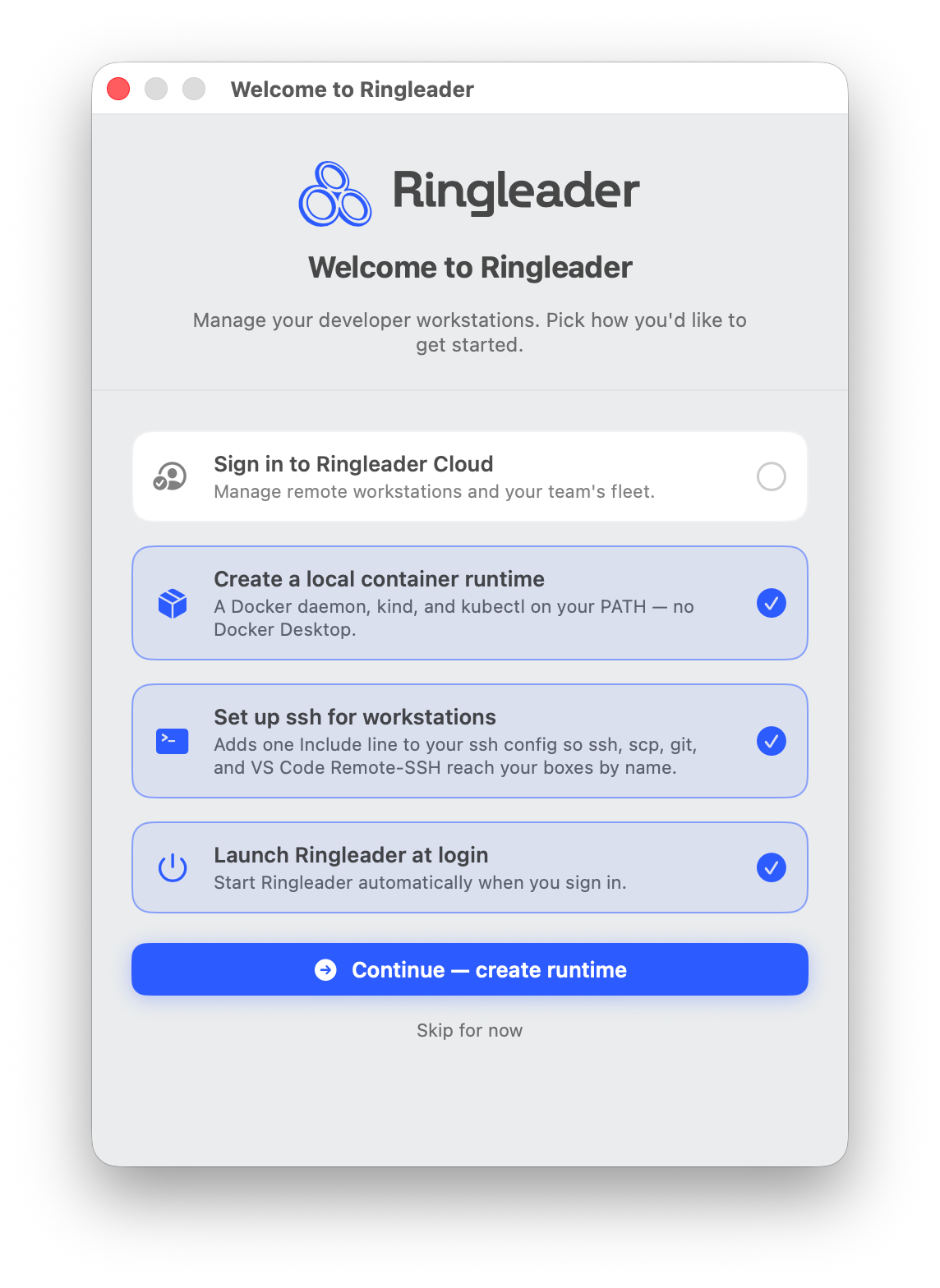
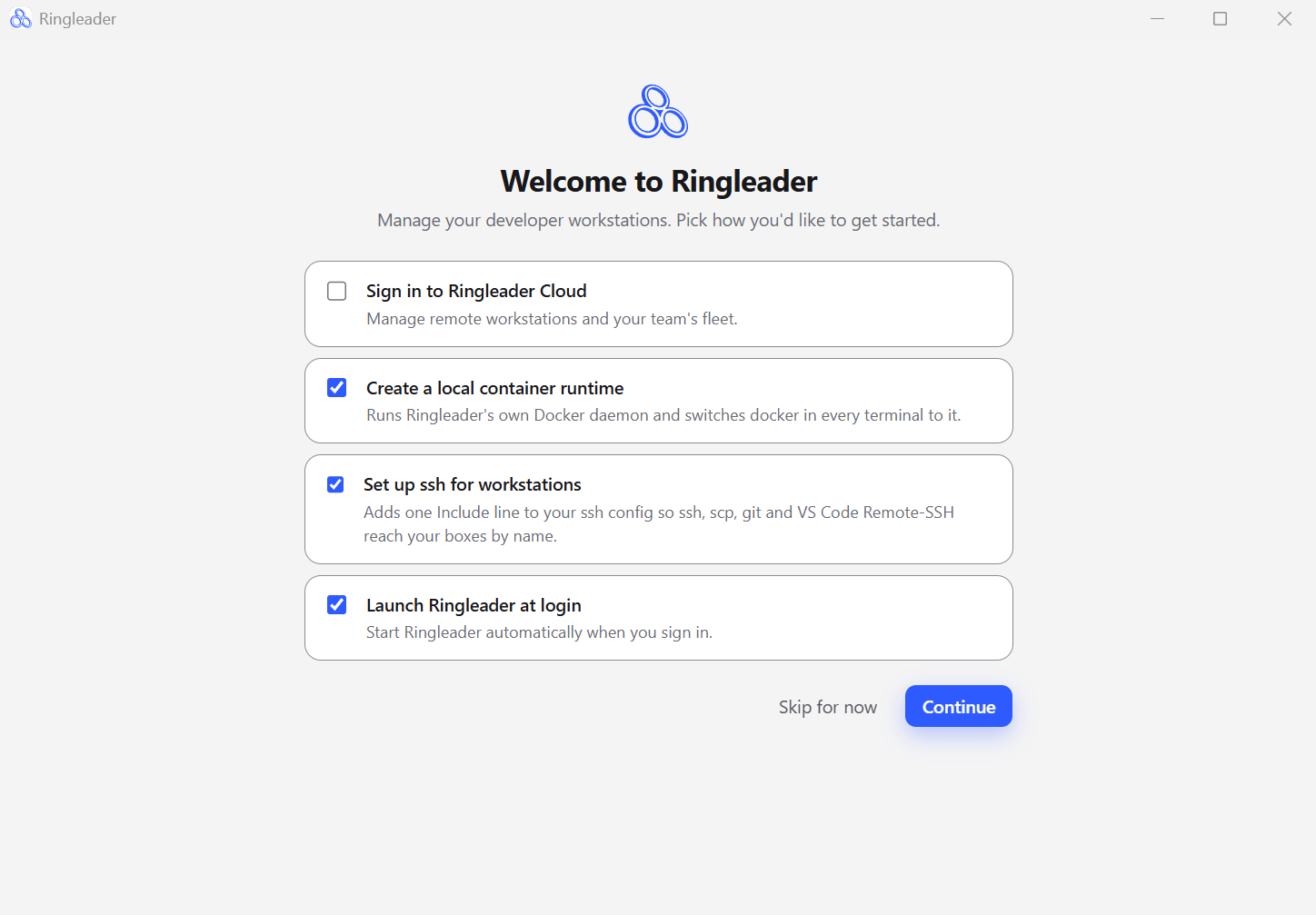
1. Sign in to Ringleader Cloud
Signing in federates your machine with the Ringleader control plane so you can create cloud workstations and share configuration. The app uses a device-code flow: it opens your browser to a verification page and shows you a short code to confirm.
Ticking Sign in to Ringleader Cloud in the wizard, or clicking Sign in on the
app’s Account page, signs you in to https://app.ringleader.dev. To do the same
from the command line, run rl auth login. To use a different control plane, pass
its URL:
rl auth login                                          # https://app.ringleader.dev
rl auth login https://your-control-plane.example.com   # a different control plane
Confirm you are signed in:
rl auth statusNote
auth commands for details.2. Create the local container runtime
The local container runtime is a local Linux machine running dockerd: a vz VM
on macOS (a lima VM when your Mac cannot run vz), and an HCS (Host Compute Service)
VM on Windows when hcs registers. If hcs cannot register and WSL2 does, it runs in
a WSL2 distribution instead.
Ringleader forwards its Docker socket to your machine and creates a ringleader Docker
context for it. Creating the
runtime switches the current context to ringleader, so docker in every
terminal talks to Ringleader’s runtime:
docker psIf you already use another Docker runtime, such as Docker Desktop, OrbStack or
Colima, the wizard leaves this option unticked, because ticking it moves docker
in every terminal over to Ringleader. You can switch between the two at any time:
docker context use ringleader       # Ringleader's runtime
docker context use desktop-linux    # back to Docker Desktop
Deleting the runtime switches docker back to the context you had before and
removes the ringleader context. That holds from the app, from
rl local-runtime delete and from rl workstation delete local-runtime.
The rl local-runtime command below says which
context it picks. Docker Desktop also switches the context back to desktop-linux
each time it starts.
Ports a container publishes are forwarded to your machine’s localhost
automatically, the way Docker Desktop behaves, so a container started in the
runtime is reachable from your own browser and tools with no extra step:
docker run -d -p 8888:80 nginx
curl localhost:8888        # works from your machine
Only ports a container actually publishes surface this way; the runtime’s own system services are not exposed.
On a Mac, the runtime shares these folders with your containers, at the same paths as on your Mac:
/Users/Volumes/private/var/folders, where your Mac keeps$TMPDIR
A container can read and write them, so docker run -v "$PWD":/app and a
compose file’s ./src:/app work unchanged:
docker run --rm -v "$PWD":/app alpine ls /app # lists your current folderIf /app is empty in a runtime you created earlier, run rl local-runtime create
again. That gives the runtime these folders, and restarts it once.
/tmp is not shared, so -v /tmp/x:/x reaches the runtime’s own /tmp, not
your Mac’s. A runtime on lima shares none of your Mac’s folders.
In a runtime on vz, an edit you save on your Mac reaches a file watcher inside a container, such as a dev server in watch mode. So does a file you create on your Mac. Deleting or renaming a file on your Mac raises no event in the runtime, but an editor that saves by writing a new copy and renaming it over the file is seen as a change in that file’s folder.
Ringleader does not pass on changes in your Desktop, Documents, Downloads or
Library folder, which holds iCloud Drive, or on an external volume, because macOS
asks before an app opens those folders. An edit to a project kept in one of them
raises no event. For a watcher to see your edits, keep the project elsewhere in
your home folder, such as ~/code.
On Windows, a runtime you created on WSL2 stays on WSL2, even when hcs can run on your PC.
To move it to hcs, delete it with rl local-runtime delete and create it again. Deleting it
removes the containers, images and volumes in it.
On Windows, a container cannot mount a folder by its Windows path. For example,
docker run -v C:\\Users\\you\\project:/app fails because Docker reads /app as a
mount mode. If your runtime runs on WSL2, use the path as WSL sees it
instead, usually /mnt/c/Users/you/project:
docker run -v /mnt/c/Users/you/project:/app image-nameYour WSL configuration can use a different mount root. For copy-based workflows, use a
named volume for files the container owns, docker cp to copy files into or out of a
container, or rl file cp -r ./project local-runtime:/home/dev/workspace/project to copy files
into the runtime before mounting that runtime path in a container.
You can still run docker build from a Windows folder.
Anything that runs in the runtime can read and change everything in these
folders. That includes ~/.ringleader, which holds the workstations on your Mac
and the key that logs in to each of them. Ringleader shares these folders with
the local runtime only: a workstation you create shares none of them unless its
own spec lists them. Run an agent in a workstation of its own, not in the
runtime.
A container in a runtime on vz cannot reach services running on your Mac, such as a
database on its localhost. The vz section
says how to carry one in. A runtime runs on lima when your Mac cannot run vz, and a runtime
created before vz became the default stays on lima. A container in a runtime on lima reaches
your Mac’s services at host.lima.internal.
The local runtime is in the reserved local namespace and appears in the Ringleader
app’s workstation list like any other workstation. It is configured like one too: a
WorkstationConfig or an Integration in local applies to it when its selector matches.
Selectors says how to keep one
off the runtime, and how to reach it on purpose.
After removing Docker Desktop
Removing Docker Desktop can leave two Docker settings pointing into the app you
deleted. Both stop docker before it reaches any runtime:
- Every
docker pullfails with an error likeerror getting credentials - err: exec: "docker-credential-desktop": executable file not found in $PATH. Your Docker config still names Docker Desktop’s sign-in helper, and the helper went with the app. - Docker cannot find
docker composeordocker buildx, because the plugin folder they were installed to is gone.
On a Mac or a Windows PC, rl local-runtime create repairs both settings after it
sets up the runtime’s Docker context. If it fails to repair them, it says so and
still creates the runtime. rl local-runtime repair-docker runs only the repair.
It does nothing when nothing is broken, and it does not change your current
Docker context.
The repair changes a setting only when it is clearly broken, and leaves a setup
that works alone. It edits config.json in your Docker config folder, which is
~/.docker (%USERPROFILE%\.docker on Windows) unless DOCKER_CONFIG names
another. It needs no administrator rights and writes nowhere else. It makes two
changes:
- It sets
credsStoretoringleader, the name of a sign-in helper that Ringleader installs: Docker’s ownosxkeychainhelper on a Mac, and itswincredhelper on Windows. If that helper is not installed, the repair leavescredsStorealone and says so. It never removescredsStore, because Docker would then store your sign-ins inconfig.jsonas plain text. - It adds the folder where Ringleader keeps
docker composeanddocker buildxtocliPluginsExtraDirs.
Before the repair rewrites config.json, it saves the old file beside it as
config.json.pre-ringleader. It never overwrites a backup that exists.
While the local runtime exists, rl local-runtime status prints a Repair: line
for each broken setting, ending in (fix: rl local-runtime repair-docker). The app
shows the same problem as Docker needs a repair, with a Fix button that
runs repair-docker.
Sign-ins that Docker Desktop’s helper saved may need a new docker login. If
Docker no longer has a sign-in you had, run docker login for that registry again.
Removing Ringleader removes the helper and leaves your Docker config alone. A
config the repair changed then still names ringleader, and every docker pull
fails with the same error. To undo the change, do one of these:
- Put the saved file back as
config.json:~/.docker/config.json.pre-ringleaderon a Mac,%USERPROFILE%\.docker\config.json.pre-ringleaderon Windows. That brings back the config as it was when the backup was first saved. - Change
credsStoreinconfig.jsonto a helper that is installed, then rundocker loginagain.
The rl local-runtime command
The app’s create and delete buttons run this command, so a terminal gives you the same runtime. It has these forms:
rl local-runtime createapplies the runtime, creates theringleaderDocker context pointing at the runtime’s Docker socket, records the context you had before, and switchesdockertoringleader. It then waits for Docker in the runtime to answer, for up to ten minutes.rl local-runtime upis the same command.rl local-runtime statusprints the runtime’s status, phase and provider. AnExisting:line names any other Docker runtime this computer is set up for, and aDocker:line gives the socket’s path and whether Docker answers through it. On a Mac it adds aDefault socket:line for the setting in The app’s pages. With no runtime it printsRuntime: not created. While the runtime exists, it also prints aRepair:line for each Docker setting that a removed Docker Desktop left broken.rl local-runtime deletedeletes the runtime, switchesdockerback to the context you had before and removes theringleadercontext.rl local-runtime downis the same command.rl local-runtime repair-dockerrepairs those Docker settings and does nothing else. After removing Docker Desktop says what it changes.rl local-runtime default-socketturns the macOS link from/var/run/docker.sockto the runtime on or off, as The app’s pages describes.
The runtime boots only while the daemon runs, so start it with rl daemon start or
open the app. On a computer where no local provider can run a workstation, create
refuses and names rl status, which says why. Running create again on a runtime
that exists applies the runtime again and keeps the provider it runs on.
create takes these flags, plus the common ones:
| Flag | Description |
|---|---|
--provider <name> | Run the runtime on this local provider instead of the one your computer picks. A runtime that exists keeps its provider, so to move it, delete it first. |
--no-wait | Return once the runtime is applied instead of waiting for Docker. |
--timeout <duration> | How long to wait for Docker (default 10m). 0 waits without a limit. |
--dry-run, -o yaml or -o json | Print what create would apply and change nothing: no runtime and no Docker context. |
While docker is still on the ringleader context, delete switches it to the
context that was current when you ran create. If that context is gone, it switches
to desktop-linux when Docker Desktop’s context exists, and otherwise to default.
If you had already switched to another context yourself, delete leaves your choice
alone and only removes the ringleader context. The same restore runs when you
delete the runtime with rl workstation delete local-runtime, from the app, or
from the terminal UI.
If the switch fails, delete leaves the ringleader context in place and says so.
Fix the cause, then run rl local-runtime delete again: it reports the runtime as
already gone and finishes the restore. rl workstation delete local-runtime does
the same when it finds the runtime already gone.
Neither form needs Docker to delete the runtime. When no docker command is found,
delete prints a notice to run docker context use default after installing
Docker, and create says it skipped the Docker context.
3. Set up ssh for workstations
This adds a single Include line to your ~/.ssh/config so that ssh, scp,
git and VS Code Remote-SSH reach your workstations by name, with no rl in the
loop. It is the only onboarding action that edits a file you own, so leaving it
unchecked leaves ~/.ssh/config untouched.
The same thing from the command line:
rl ssh-config installWhat the command writes, why the line has to come first, and how to check or undo it,
is in rl ssh-config. You can also
turn it on later from Settings → “Reach workstations with plain ssh”.
4. Launch at login
Check Launch Ringleader at login during onboarding to start Ringleader automatically when you sign in, so the daemon and your runtime are always ready. You can change this anytime from Settings → “Launch Ringleader at login” (see The app’s pages). On macOS the same toggle also appears under System Settings → General → Login Items. On Windows the app registers itself the way any startup app does, so it also appears wherever Windows lists startup apps.
After onboarding
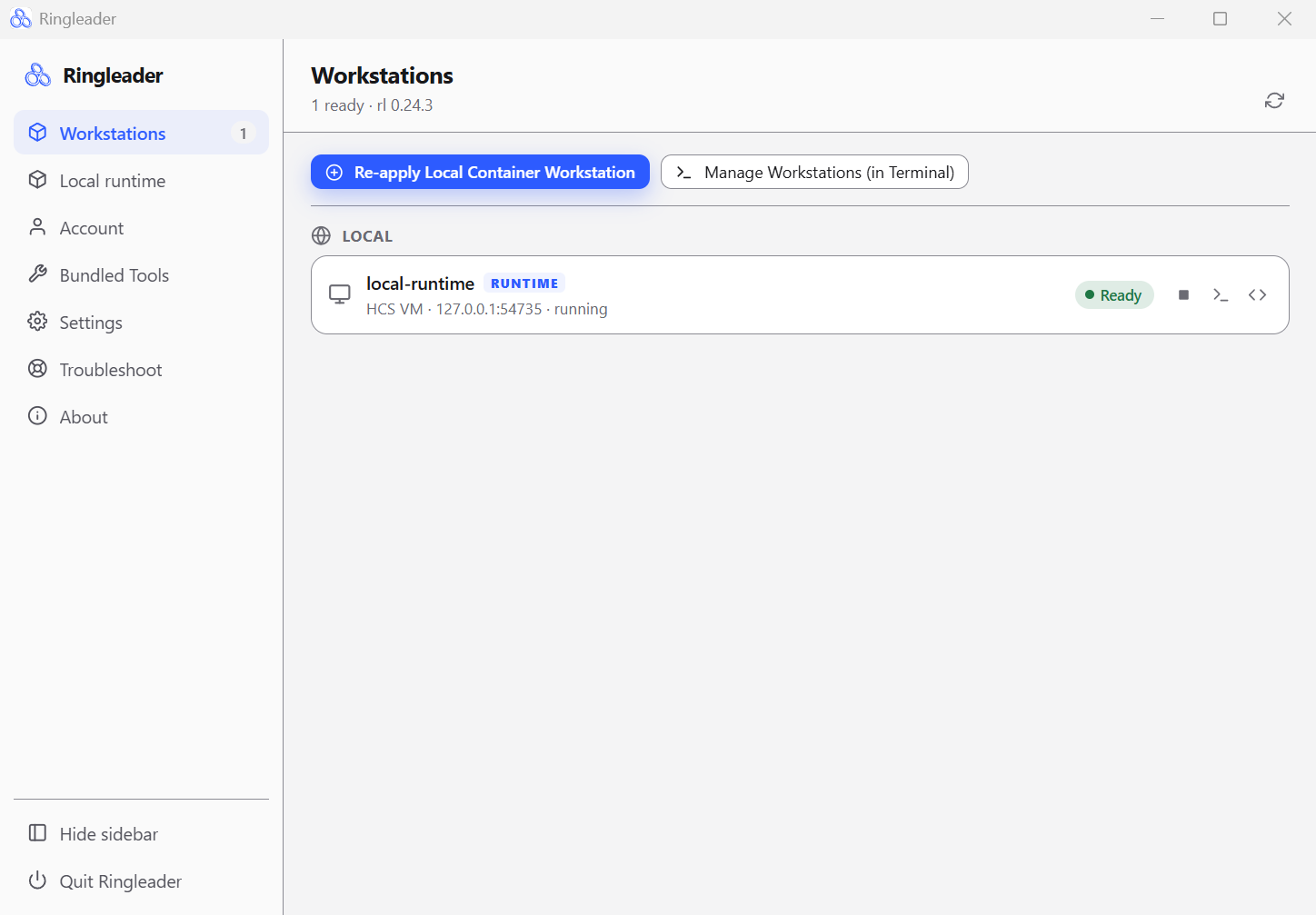
The app’s Workstations page lists your workstations with a status for each and per-row start, stop, shell and Open in VS Code buttons. The Account page shows the control plane you are signed in to and the local daemon, with Start, Stop and Restart. The app’s pages covers the rest.
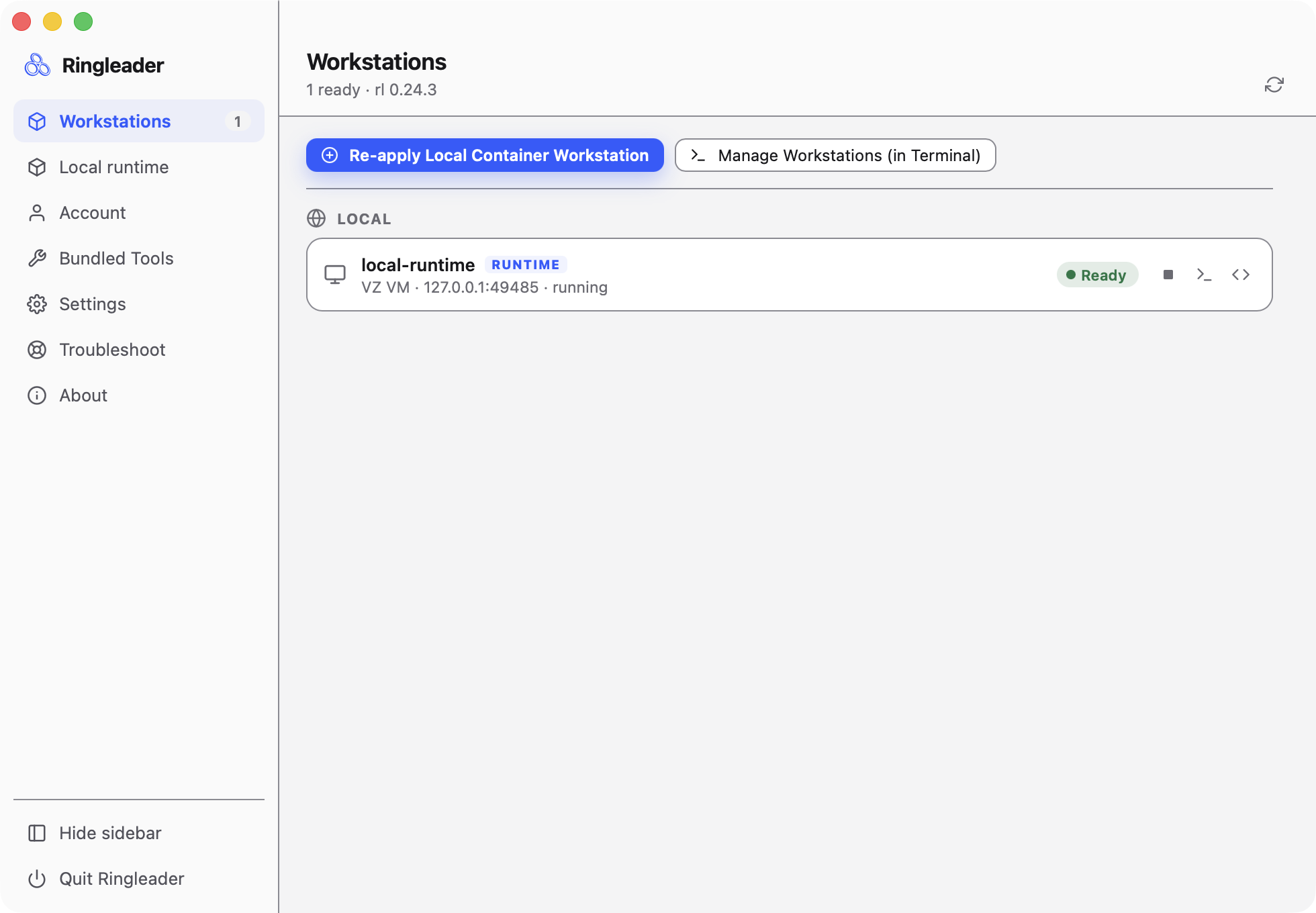
Boot your first workstation
A workstation is a resource like any other, and the simplest one specifies nothing at all. Ringleader picks where to run it (the provider, here a local Linux VM on your machine) and fills in sensible defaults, so you get a working Linux machine without configuring anything:
rl workstation create helloOr describe it declaratively in a manifest, a YAML file you write and apply
like kubectl. Create workstation.yaml:
apiVersion: workstations.ringleader.dev/v1
kind: Workstation
metadata:
  name: hello
  namespace: local
spec: {}rl apply -f workstation.yamlOr, apply the file from our example in GitHub, which is the same manifest:
rl apply -f https://raw.githubusercontent.com/ringleader-dev/ringleader-examples/main/getting-started/01-hello-workstation/workstation.yamlRingleader records it and reports what it did and where the resource now lives:
workstation/hello created → self (local namespace, stays on this device)The arrow is placement feedback: self means this machine’s own store, and the
reserved local namespace always stays on your device.
Watch it come up
The rl workstation create or rl apply command from the last step starts your
workstation in the background. On the way up it passes through the phases Pending,
Provisioning, PostInstall and Running. Watch its progress in the Ringleader app’s
workstation list, or in the terminal with the commands below. The table’s STATUS column
shows each phase as it passes, then Ready once the workstation is up and fully configured.
rl workstation get -w
rl workstation wait hello --for Ready --timeout 10m
For a human-friendly summary of phase, headline message, and conditions:
rl workstation describe helloConnect
Once it shows Ready, open a shell:
rl shell hellorl shell connects over SSH using the node key, resolving the address and
login user from the workstation’s status. Run a one-off command instead of an
interactive shell by appending it:
rl shell hello -- uname -aThat’s it. The environment is persistent. Stop it, come back tomorrow, and it picks up where you left off. Apply the same file again and Ringleader brings the machine back in line with it.
Next, learn how to make these environments do real work in Configuration.