



Install on Windows
Download and run the Ringleader MSI installer, which installs the Ringleader app and the bundled rl CLI.
Ringleader ships for Windows as an MSI installer (Ringleader-<version>-amd64.msi).
Installing it gives you three things at once:
- the Ringleader app: one window, opened from an icon in your system tray, that runs the local container runtime and boots your workstations.
- the
rlCLI (plus the bundleddocker,kubectl,kind, andhelmtools, and the Dockercompose/buildxplugins), added to the machinePATH. - the Ringleader VM Service, a Windows service that runs the HCS (Host Compute
Service) VMs of
hcsworkstations. The installer adds it whether or not you usehcs.
On Windows, hcs is the default local provider when it registers. It runs each
workstation in its own HCS VM. If hcs cannot register and WSL2 does, WSL2 becomes
the default. If neither registers, the daemon has no default local provider. Neither
needs a separate virtual-machine tool to install or manage.
Note
rl command line also ships for Linux. This page covers 64-bit (x64)
Windows; for macOS, see Install on macOS.Requirements
- A 64-bit (x64) PC running Windows 11, or Windows 10 with WSL2 available.
- Hyper-V and Virtual Machine Platform enabled for
hcs, the default local provider. Open Turn Windows features on or off, tick both, and restart when Windows asks. - WSL2 enabled for the fallback provider. If you have never used WSL, run
wsl --installfrom an elevated (Administrator) terminal and reboot when prompted. - Administrator rights (the installer is per-machine and updates the machine
PATH).
Ringleader has tested hcs only on Windows 11 Pro. Run rl status to see
which provider your PC can use and why another one cannot run.
You do not need Docker Desktop: Ringleader bundles its own container runtime.
If you already use Docker Desktop or Rancher Desktop, Ringleader installs
alongside it. The installer adds its tools to the end of the machine PATH, so
your existing docker stays the one your terminal runs, and the first-run wizard
switches docker to Ringleader’s runtime only if you ask it to.
1. Download the installer
How you download depends on the invitation email you received:
- A Download Ringleader button opens your personal download page. Download
Ringleader-<version>-amd64.msithere. - A Sign in to Ringleader button means you sign in first. Sign in at
app.ringleader.dev with that address, using your Google
account, open Downloads in the top menu, and download the latest
Ringleader-<version>-amd64.msi.
2. Run the installer
Double-click the .msi and follow the steps. Windows will ask for administrator
approval to complete the installation.
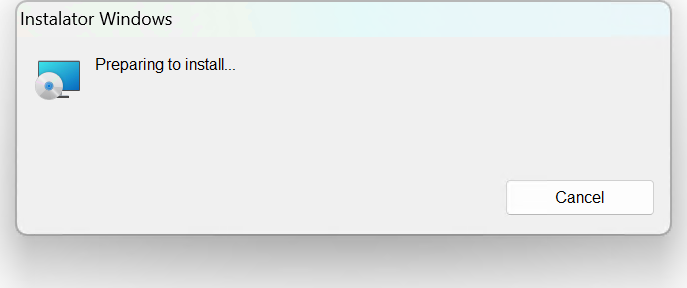
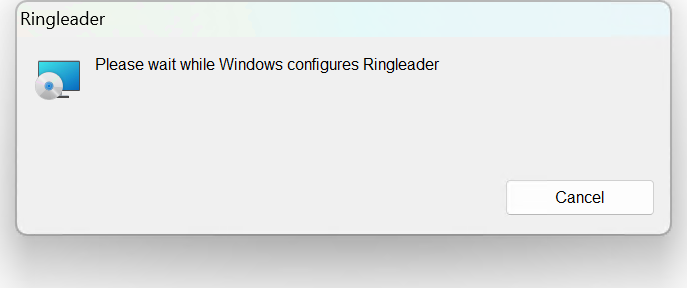
The installer places the app and the bundled command-line tools and updates the
machine PATH. Unlike the macOS installer, there is no separate “installation
complete” dialog. When the progress window closes, the install is finished.
SmartScreen warning on beta builds
What gets installed
The package installs the app and puts the bundled command-line tools on the
machine PATH:
| Tool | Purpose |
|---|---|
rl.exe | the Ringleader CLI |
ringleader.exe | alias for rl.exe |
docker (+ compose/buildx plugins) | the Docker CLI, used when no other docker comes first on your PATH |
kubectl | the Kubernetes CLI |
kind | Kubernetes-in-Docker clusters |
helm | the Kubernetes package manager |
The package also installs the Ringleader VM Service. It starts with Windows and runs as the
Local System account. For the Windows account that asks, it creates, starts and stops the HCS VMs
of hcs workstations, which is why creating one needs no administrator after the install. It acts
for no other account. Any account on the PC can ask it, and nothing from
another PC can. Windows lists it under Services as Ringleader VM Service, and
the app’s Account page shows whether it is running.
Unlike the macOS package there is no lima/limactl. On Windows, hcs runs
workstations as HCS VMs when it registers. WSL2 is the fallback when hcs cannot
register and WSL2 does.
Note
rl. The longer ringleader name stays available as a
permanent alias, so existing scripts and muscle memory keep working. Windows
installs it as a second executable rather than a symlink, so ringleader.exe
behaves identically to rl.exe, including Ctrl+C handling. This documentation
uses rl throughout.3. Verify the install
Open a new terminal (so it picks up the updated PATH) and confirm the CLI is
available:
rl version4. Open the app
When you install Ringleader for the first time from the installer’s own window, the Ringleader window opens as the install finishes, so you can go on to step 5.
The window does not open on its own after an upgrade, or after an install a management tool ran silently. The app then starts hidden in the system tray. To bring up the window, click the Ringleader icon in the tray, or open Ringleader from the Start menu.
Each time the app starts, it also starts a background rl daemon, the control loop
that boots workstations and forwards the Docker socket.
5. Complete first-run onboarding
The first time it runs, the app shows a short onboarding wizard with four
opt-in actions: sign in to Ringleader Cloud, create the local container runtime, set
up ssh for workstations, and launch at login. Pick the ones you want, or skip and
do them later from Settings.
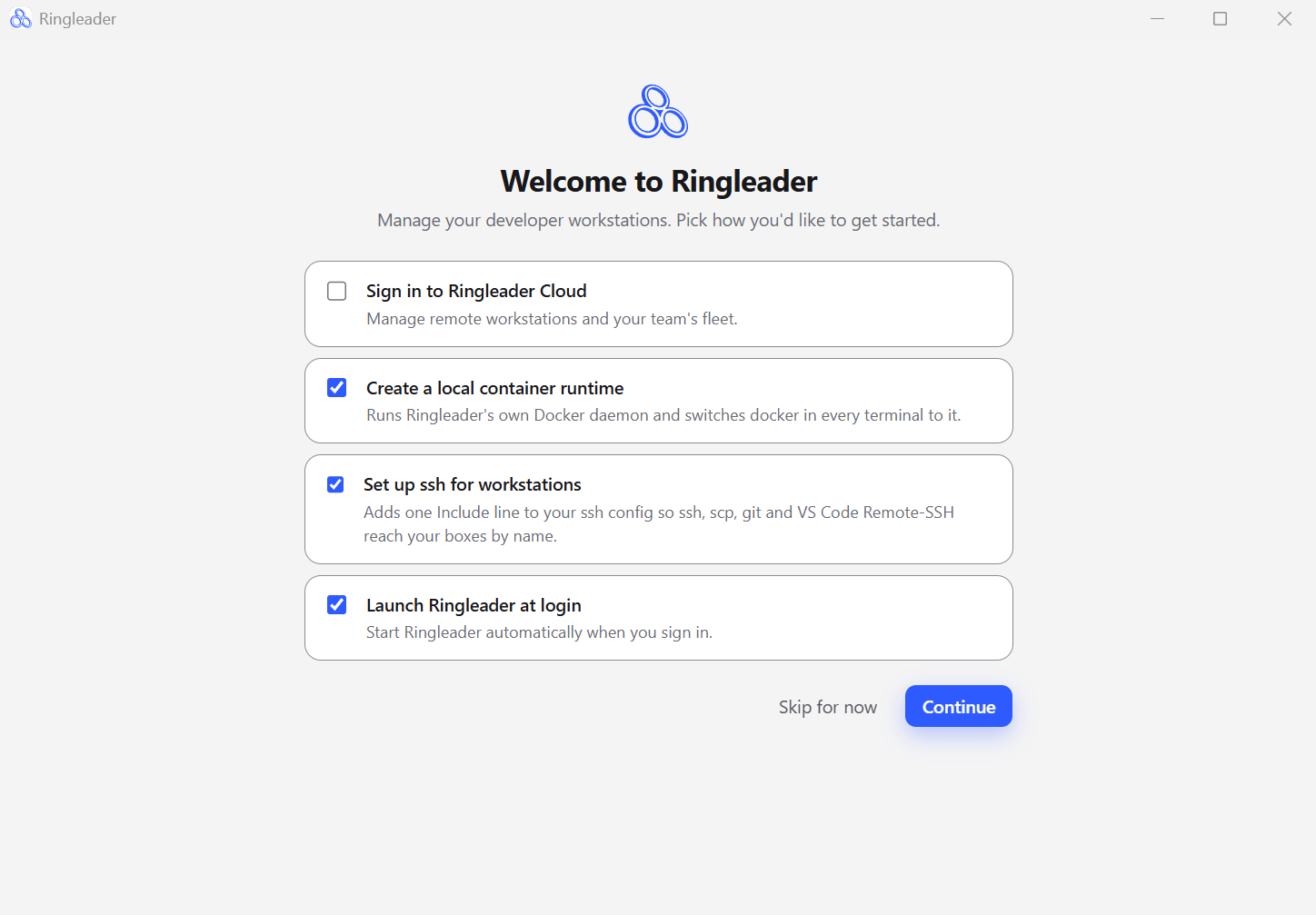
See Onboarding for a full walkthrough of signing in and bringing up your first workstation.
6. Find the app in the system tray
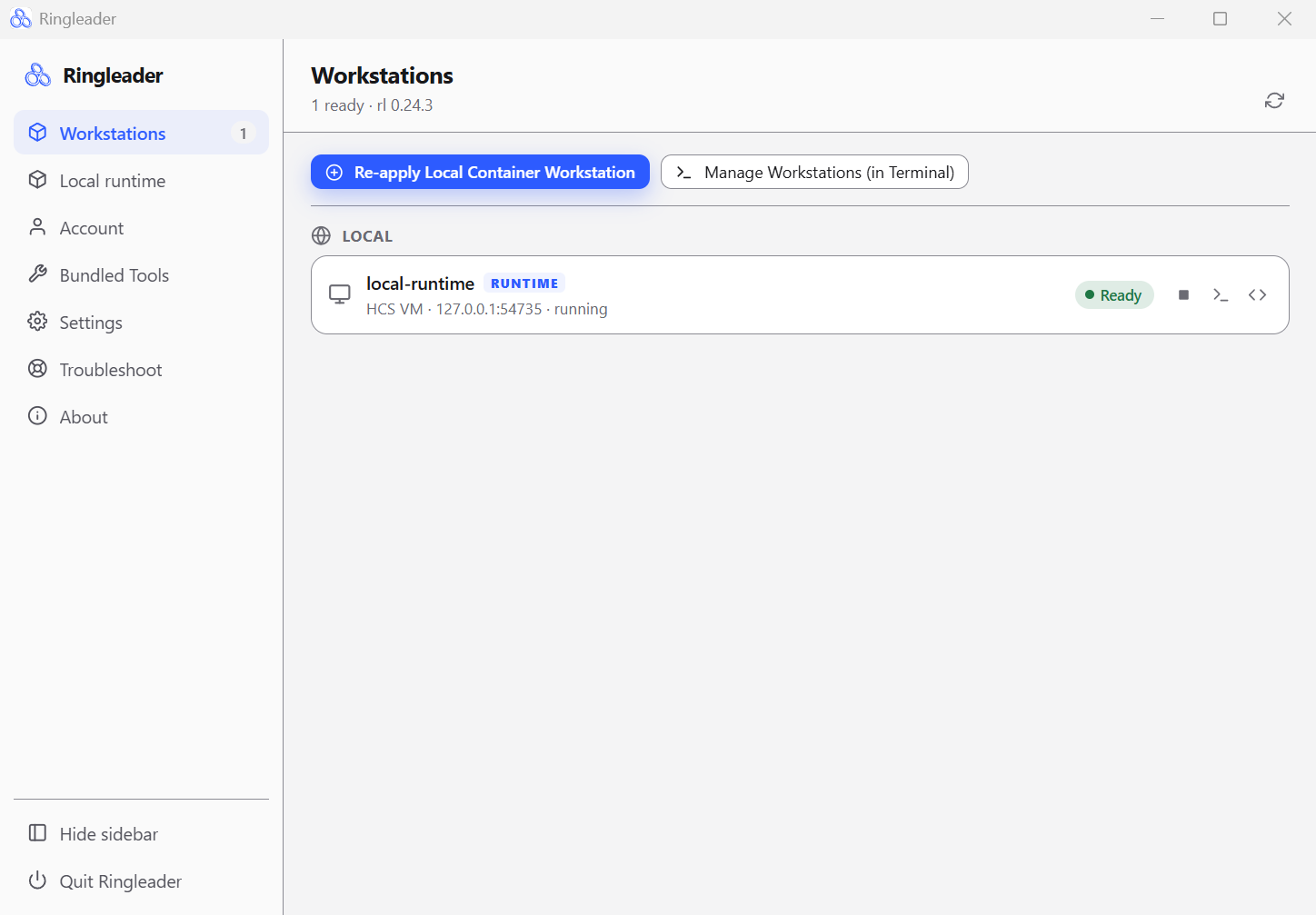
Ringleader lives in the system tray. Look for the Ringleader mark there. Click it to show or hide the Ringleader window, or right-click it for a menu with Open Ringleader and Quit Ringleader. The window opens on its Workstations page, which lists your workstations with a status for each and per-row start, stop, shell and Open in VS Code buttons. Closing the window hides it and the app keeps running in the tray. The icon shows a dot while something is waiting for you, such as a sign-in awaiting approval.
The window’s pages
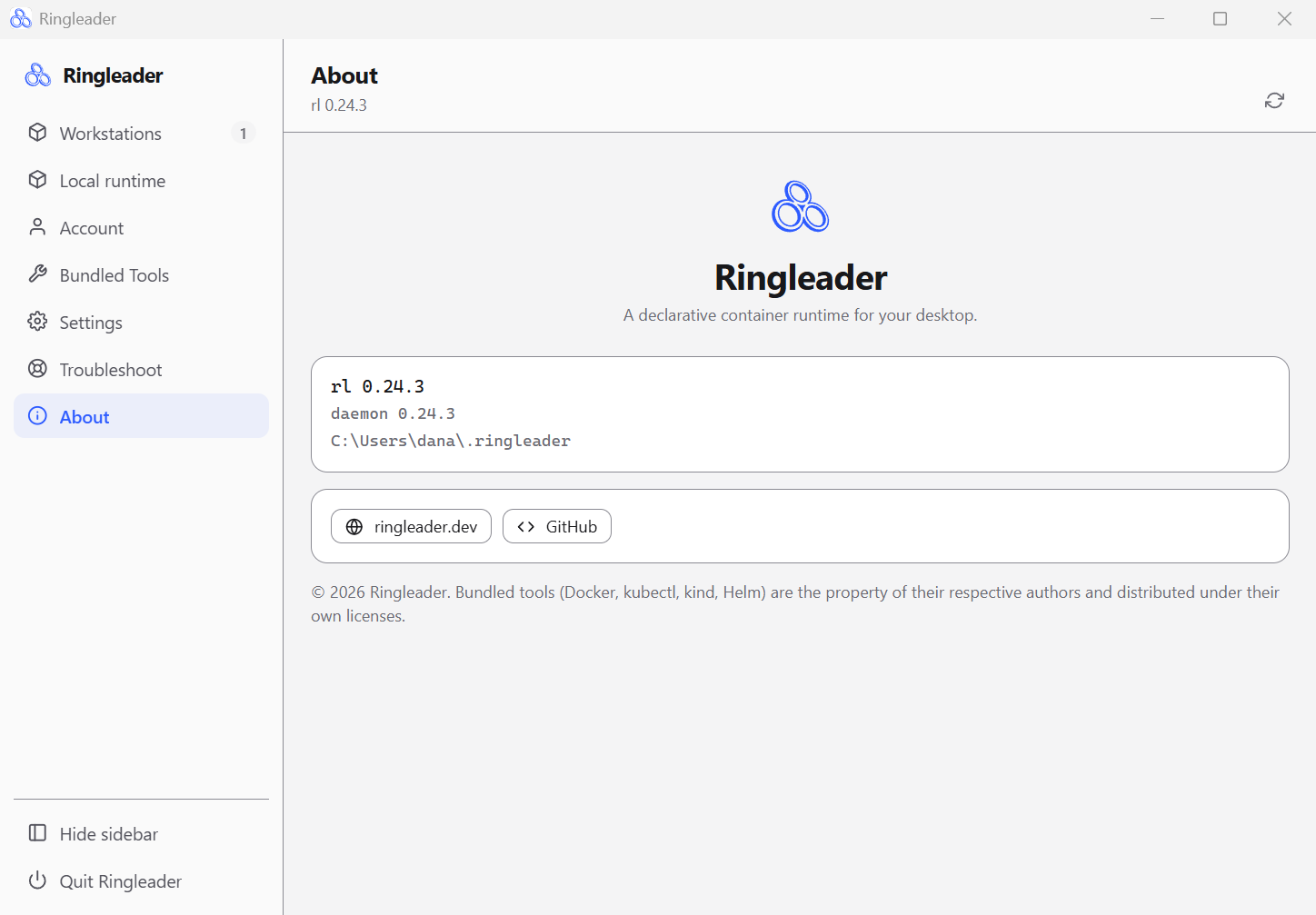
The window’s sidebar has seven pages: Workstations, Local runtime, Account, Bundled Tools, Settings, Troubleshoot and About, which shows the installed app and daemon versions. For what each page does, see The app’s pages.
Optional: reach workstations with plain ssh
rl shell is a convenience, not a requirement. The daemon continuously writes a
real OpenSSH configuration for your workstations under
%USERPROFILE%\.ringleader\ssh\, and keeps it current as workstations come and go. Wire it
into your own SSH config once, from PowerShell or any other shell:
rl ssh-config installFrom then on ssh my-box, scp, git clone my-box:repo.git, and VS Code / Cursor
Remote-SSH all reach your workstations by name, with the host key pinned.
The command adds one Include line at the top of %USERPROFILE%\.ssh\config and
leaves the rest of the file alone. What it writes, and how to check or remove it, is in
rl ssh-config.
Using ssh directly has the
host aliases and what each generated block contains.
Three things differ from macOS:
- No connection multiplexing. Win32-OpenSSH does not support
ControlMaster, so Ringleader omits it and everysshinvocation performs a full handshake. - Several
ssh.exemay be on yourPATH: the Windows OpenSSH optional feature, the one bundled with Git for Windows, and any installed by Scoop or Chocolatey. They read different configuration files. Check which one wins withGet-Command ssh. - WSL has its own SSH config. The
Includeabove applies to the Windows host. Ansshrun inside a WSL distribution reads that distribution’s~/.ssh/config.
Uninstalling
Remove Ringleader like any other Windows application: Settings → Apps → Installed apps → Ringleader → Uninstall.
Uninstalling stops every hcs workstation on the PC, for every Windows account, and removes
the Ringleader VM Service. It leaves two folders in place:
%ProgramData%\RingleaderVMholds the disks of every account’shcsworkstations and the base disks those disks are layered on. If you install Ringleader again, a workstation that was running starts again on its own disk. A stopped one stays stopped until you start it.%USERPROFILE%\.ringleaderis your data directory. It holds your workstation records.
To free the disk space before you uninstall, delete your hcs workstations with
rl workstation delete <name>, then run rl image delete --unused. It deletes the base disks
the Ringleader VM Service keeps for your Windows account, and the downloaded images nothing uses.
To delete every account’s disks after you uninstall, run this in a PowerShell window opened as Administrator:
Remove-Item -Recurse -Force "$env:ProgramData\RingleaderVM"Remove %USERPROFILE%\.ringleader too if you want nothing of Ringleader left on the PC.